Your brand.
Your sound.
Your first project.
Learn the workspace, shape a confident brief, and take your music from first idea to final delivery.
Creative technology. Hands-on studio expertise.


Find your next step.
Follow the full journey or jump straight to the tool you need.
No matching lessons
Try a shorter search or clear your filters.
0101 / GET STARTEDA little preparation goes a long way.
3 min
Bring a clear objective, a few references and the words your audience should remember. A strong brief helps the studio make better creative decisions.
Enter your workspace
Create an account or sign in, then complete email verification if requested. Your Dashboard brings together production progress, recent activity and upcoming calendar entries.
Define the job for your music
Write down where the song will be used, who it is for, the intended feeling and the key message. A product launch, a podcast intro and a brand anthem need different briefs.
Check your song credits
Hybrid Studio shows the credits required for submission and your available balance. Use Add credits if needed. Package and subscription allowances depend on your selected plan.
Understand what happens next
Submitting a brief places it in the studio production queue. The team handles the creative development and professional finishing, then uploads your deliverables. Typical production messaging is 24–48 hours; follow your project for its actual progress.
You can explore styles and templates before submitting a project. Submission is the step that uses song credits.
0202 / SET THE CONTEXTBuild a brand the studio can understand.
4 min
Keep your brand identity in one workspace, then add the commercial context for each campaign.
Create a brand workspace
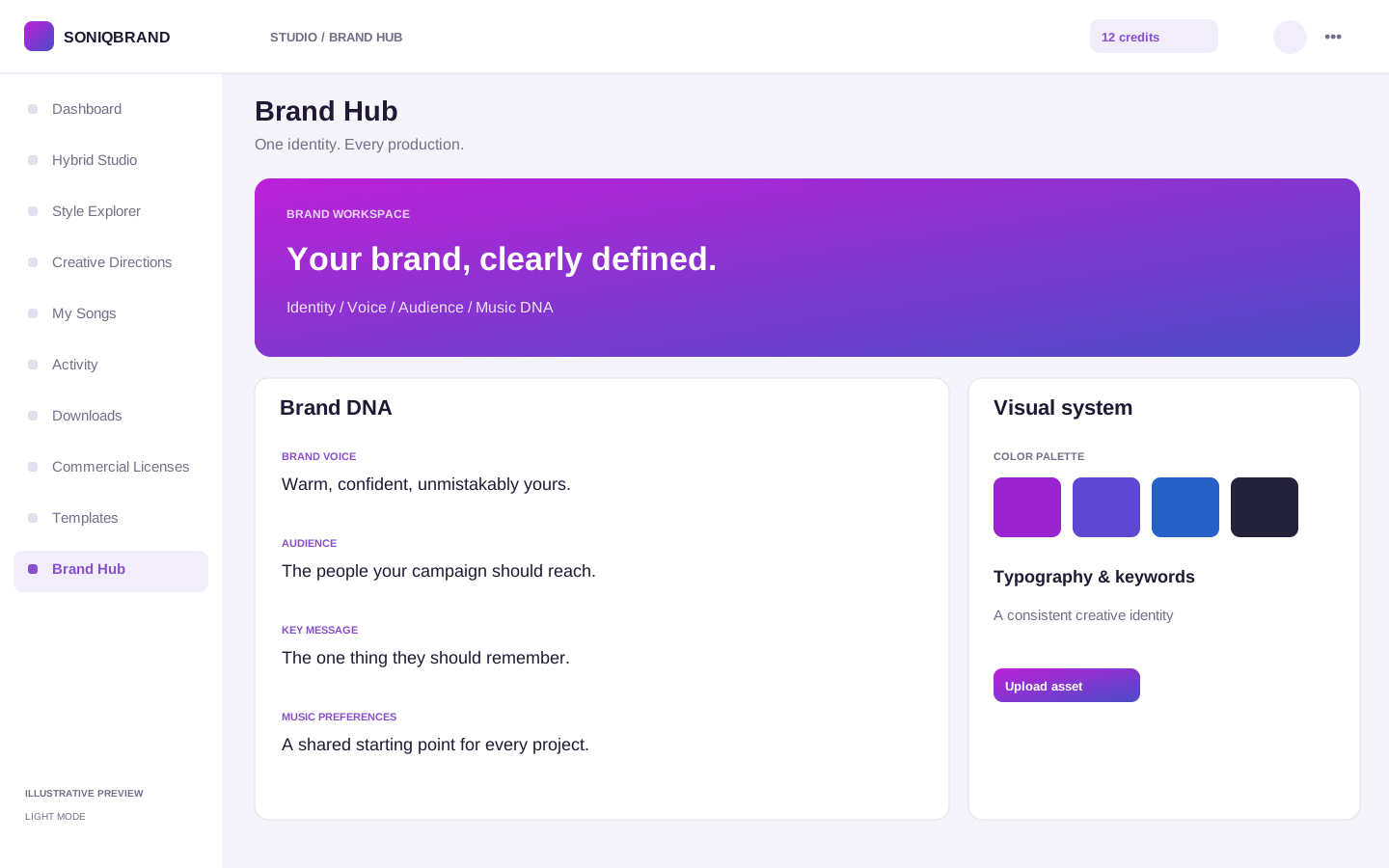
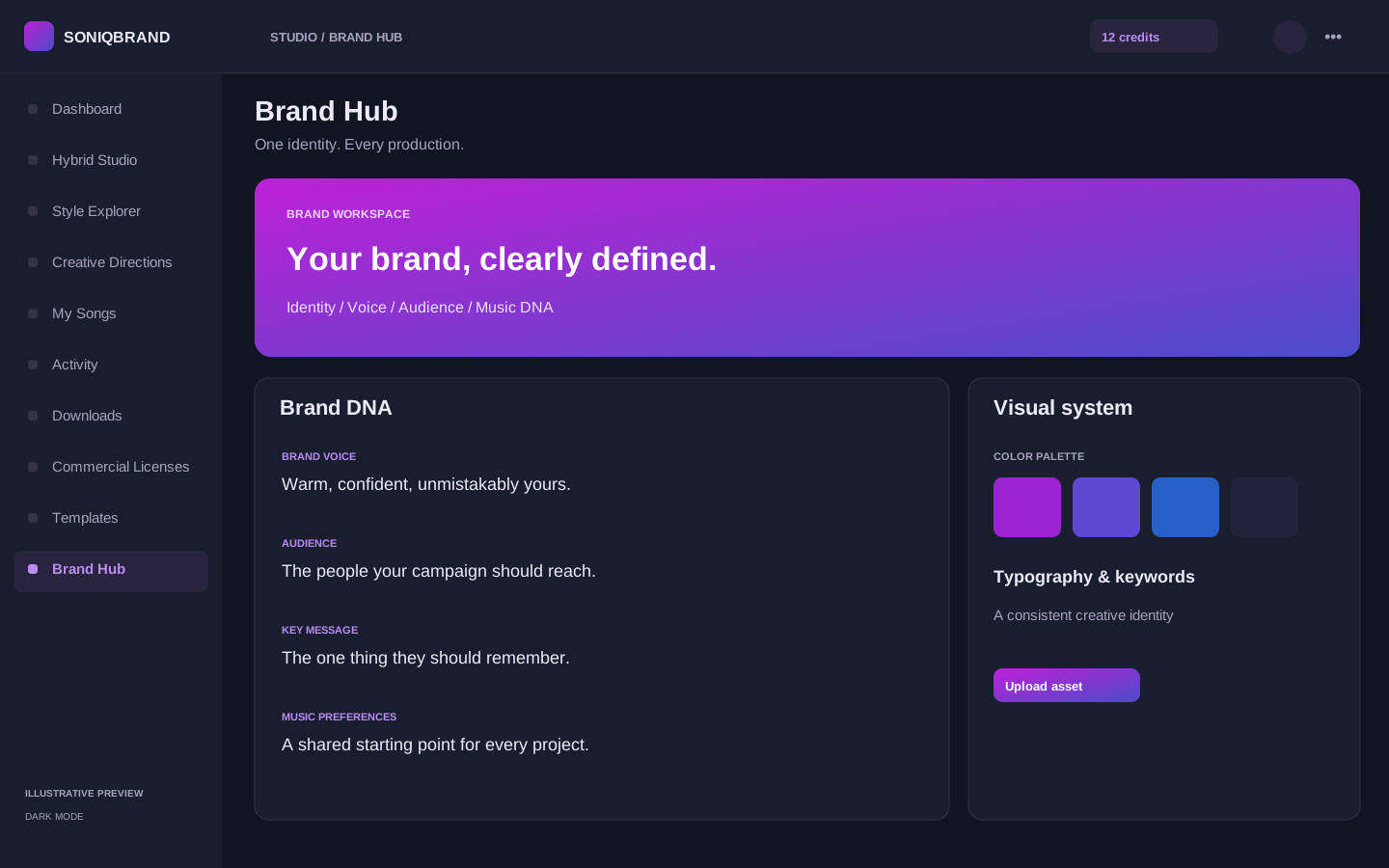
In Brand Hub, choose New brand workspace. Add the brand name, market, website, tagline and logo, then define your mission, voice, target audience and key message.
Add the details that make it yours
Include preferred genres, pronunciation notes, restricted words or themes, colors and typography. Upload reference assets from the brand workspace so the team has useful context.
Apply the brand inside Hybrid Studio
Open Hybrid Studio, choose Brand profile, and select the saved brand. This links the brand and fills the brand name and a brief assembled from its key message, audience, slogan and pronunciation notes. Review the brief after applying it.
Give each campaign its own objective
In Campaigns, record the campaign name, type, platform, audience, region, launch date and call to action. Save the campaign and choose Create song to start a brief with that campaign context.
Apply a brand profile before polishing the brief: the picker replaces the brief field. Keep campaign-specific instructions in the final version you submit.
0303 / DISCOVER YOUR SOUNDFind a direction. Build a sound blend.
3 min
Style Explorer turns a broad musical idea into a more specific production starting point.

Narrow the library
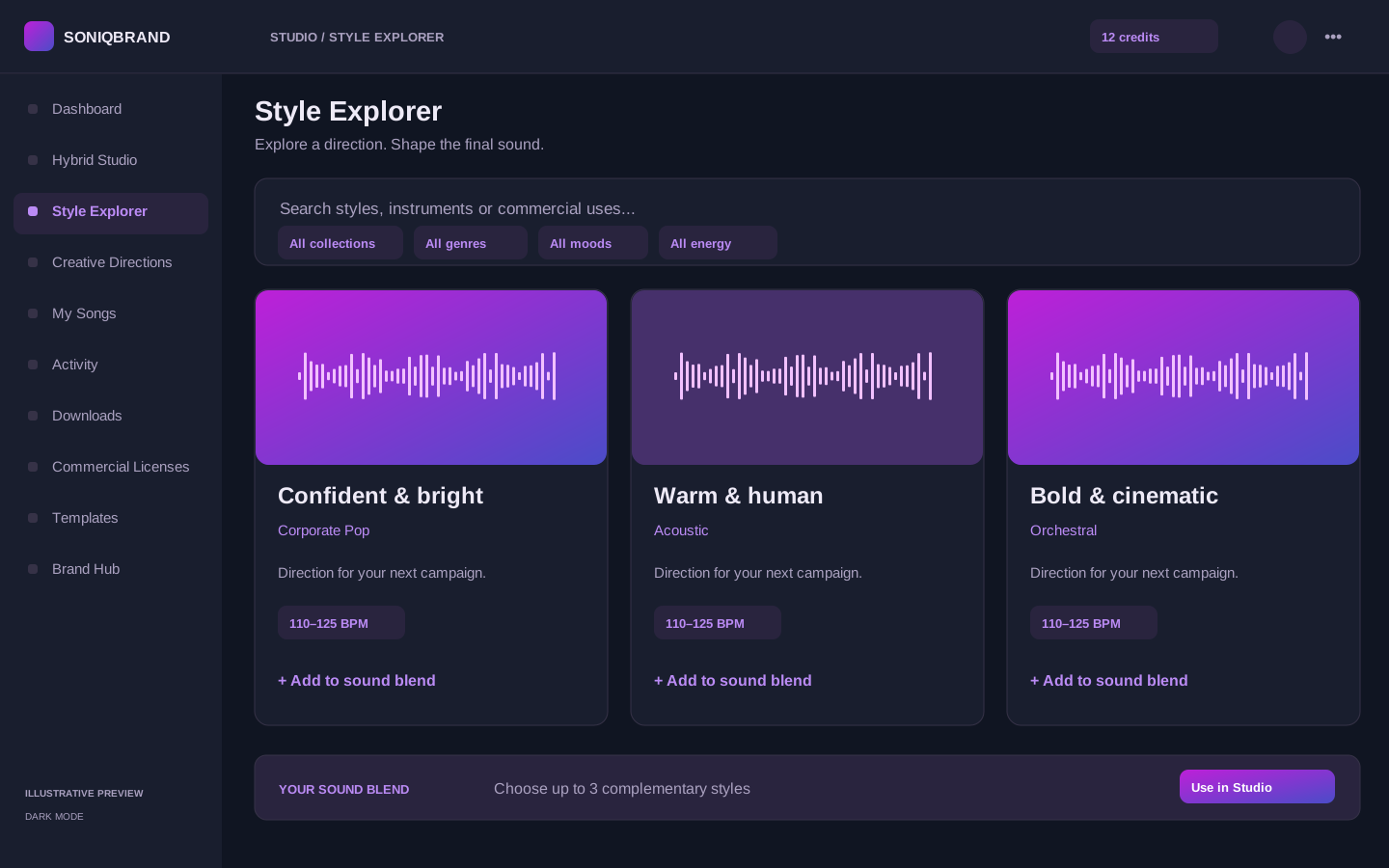
Search for a sound or commercial use. Filter by collection, genre, mood, usage or energy, and use Featured to focus the results.
Read the creative cues
Each card describes a direction, its BPM range, instruments and suitable commercial uses. Use these details to compare how each direction might support your message.
Choose up to three styles
Use the plus button on a card to add it to Your sound blend. Select it again to remove it, or use Clear to start over. The blend accepts up to three complementary styles.
Choose Use in Studio
The selected styles prefill the production brief with their style tags and instruments. The first style supplies the starting genre, mood, usage and midpoint of its BPM range. Check every field before submission.
A blend is creative guidance for the production team. Choose directions that support the same message, then use the brief to explain what you like about each.
0404 / DEFINE YOUR DIRECTIONStart with the strategy behind the song.
3 min
Creative Directions combine a commercial concept with a structured sound and reference framework.
Search by purpose
Open Creative Directions and search for your campaign, use case, genre, mood or instrument. Collection, genre, mood and usage filters help narrow the options.
Read the direction before choosing
Review the summary and its genre, mood, duration, usage, style tags and instruments. Choose the direction that fits the job your music needs to do.
Select Use this direction
Hybrid Studio opens with the available creative fields, brand-brief prompt and reference prompt from that direction. It is a starting point you can edit.
Replace general guidance with your brand details
Add your project and brand names, specific message, audience and references. Supply lyrics for a vocal project, or choose Instrumental when you need music without vocals.
Creative Directions help define the concept. Style Explorer helps combine sonic influences. Either path should end with a brief tailored to your brand.
0505 / USE A BLUEPRINTSkip the blank page. Keep your own voice.
3 min
Song Templates provide a reusable commercial structure, with creative settings ready for you to customize.
Browse the Template Library
Search by use case or sound, then filter by collection, usage and genre. Featured highlights selected starting points.
Compare the blueprint
Review the template description, duration, genre, mood, usage, direction and core instruments. Pick the format that matches your intended placement.
Select Use this template
Hybrid Studio loads the template’s creative settings and available lyrics structure. You can also choose a template from the Template button within the studio.
Customize before you submit
Replace the starting lyrics with your message, review the length and usage, and check the instrument and style selections. Add your project name, brand and production instructions.
Apply a template before writing your final lyrics and brief. It can replace creative fields, so review the result when switching templates.
0606 / SHAPE THE SOUNDTurn the idea into a production-ready brief.
6 min
Hybrid Studio brings lyrics, sound choices and commercial instructions into one request for the production team.
Choose the right mode
Easy shows the essential creative choices and selects Studio may refine lyrics. Custom exposes the full set of controls. Instrumental locks lyrics and vocal controls for a project without vocals. Vocal projects still need starting lyrics.
Name the project and shape your lyrics
Enter the required project and brand names; the song title is optional. Add lyrics with the section buttons or More. Choose Use my lyrics or Studio may refine lyrics, and watch the 5,000-character counter.
Choose style and instruments
Use Show more styles to expand Style direction and Show fewer styles to compact it. Browse up to 80 curated instruments with search and family tabs. When configured, Popular opens first and shows the manually selected instruments together in one flat grid.
Complete Shape the Sound
Review genre, mood, vocals where applicable, language, usage, duration and tempo. Describe the audience and key message, add references and unwanted styles, then review the production approach and human services.
Review and submit
Check the Required credits card and your available balance. Confirm the draft save indicator when editing, then use the submission button once the brief is ready. A successful submission uses the displayed credits, clears the saved draft and opens your project in the production queue.
Be specific about references: explain the rhythm, energy or texture you want. The Popular tab is an administrator-curated selection, not a ranking of other clients’ choices.
0707 / FOLLOW PRODUCTIONKnow where your project stands.
3 min
My Songs gives you the project view. Activity gives you the latest updates across your productions.
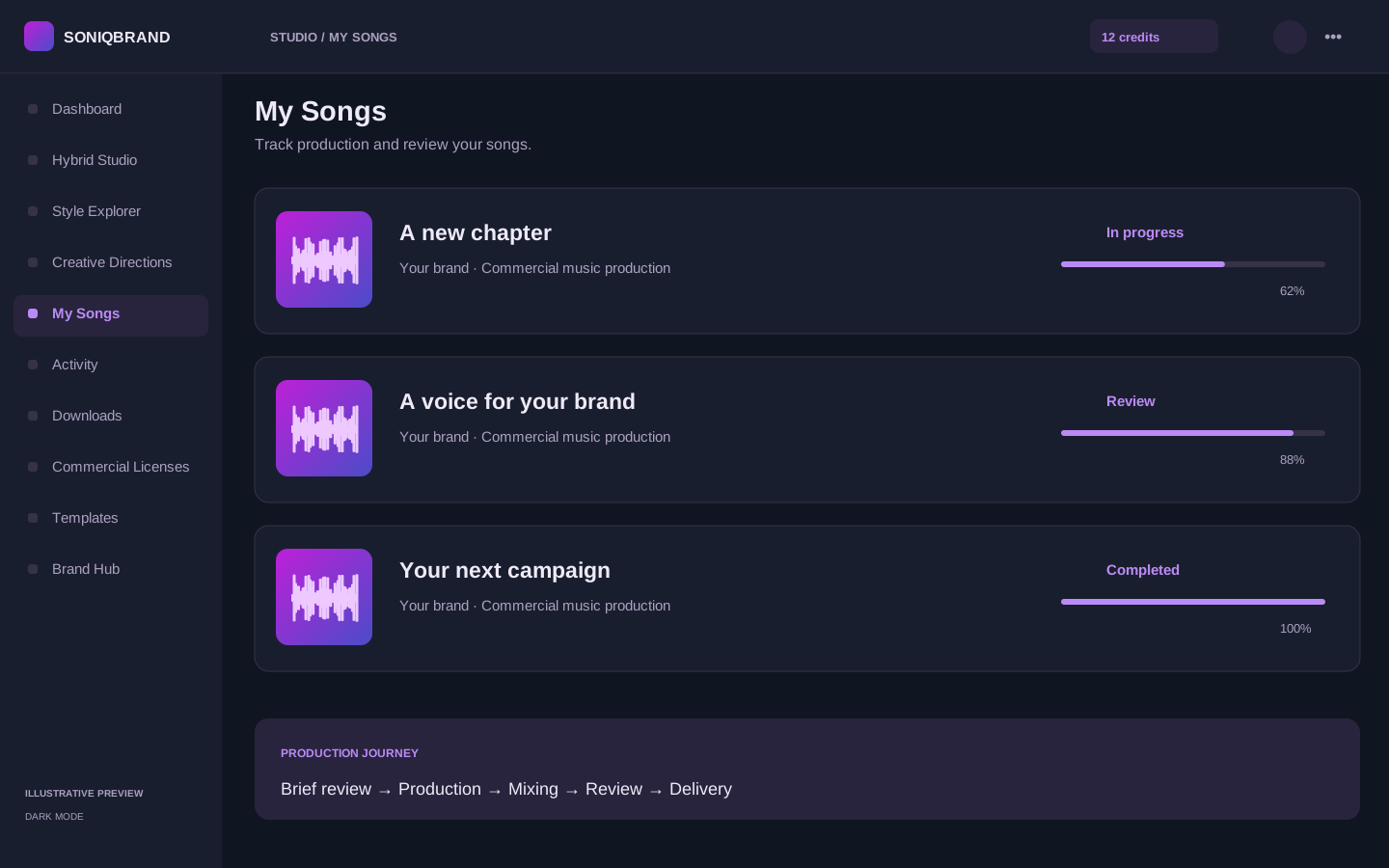
Find a project in My Songs
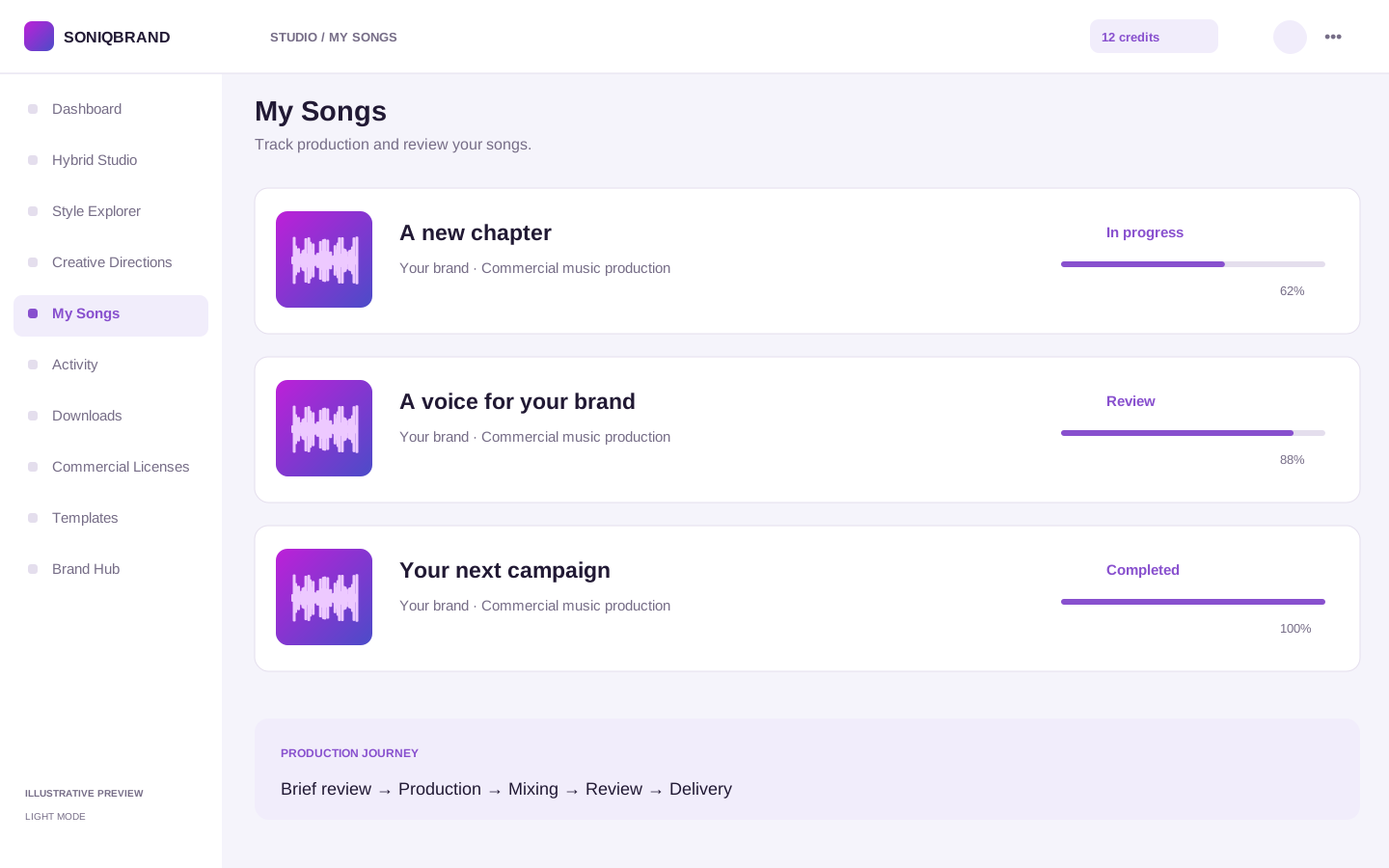
Search by title, project name or brand. Filter by the available statuses, including queued, in progress, review, revision and completed.
Open the project
Choose a song to see its Production journey, delivery files, lyrics, creative brief, activity and revision history. Progress reflects the project’s production stages.
Use Activity for a wider view
Activity lists production updates from your projects. The Dashboard also shows an overview, recent activity and upcoming calendar entries.
Check availability before downloading
A project can be in production before any files are available. Final and alternate files appear when the studio uploads them. Use the project’s updates for timing and next steps.
Keep the project link supplied by the workspace. It opens the correct project securely without requiring you to construct an address.
0808 / COLLABORATEGive feedback the team can act on.
3 min
Keep production feedback specific, and use the right conversation for the help you need.
Listen to the relevant version
Open your project and preview the available delivery files. Note the file/version and the moment you want the team to adjust.
Request a revision from the project
Choose the relevant file/version or general project feedback, select a category, and add an optional timestamp in seconds. Describe the requested change and send the revision request.
Follow the response
Check Revision history and any Studio reply on the project. Review your package’s revision allowance when planning feedback.
Use Messages or Support when appropriate
Messages keeps studio conversations together. For billing, account or technical help, open Support, choose New ticket and explain the issue. You can track the ticket status and continue the conversation there.
“At 24 seconds, lower the percussion so the brand line is clearer” is more useful than “make it better.” Consolidate related changes into a clear request.
0909 / COLLECT YOUR FILESTake the right files into your next campaign.
3 min
Your project and Downloads collect studio deliveries. Media Center organizes your own creative assets.

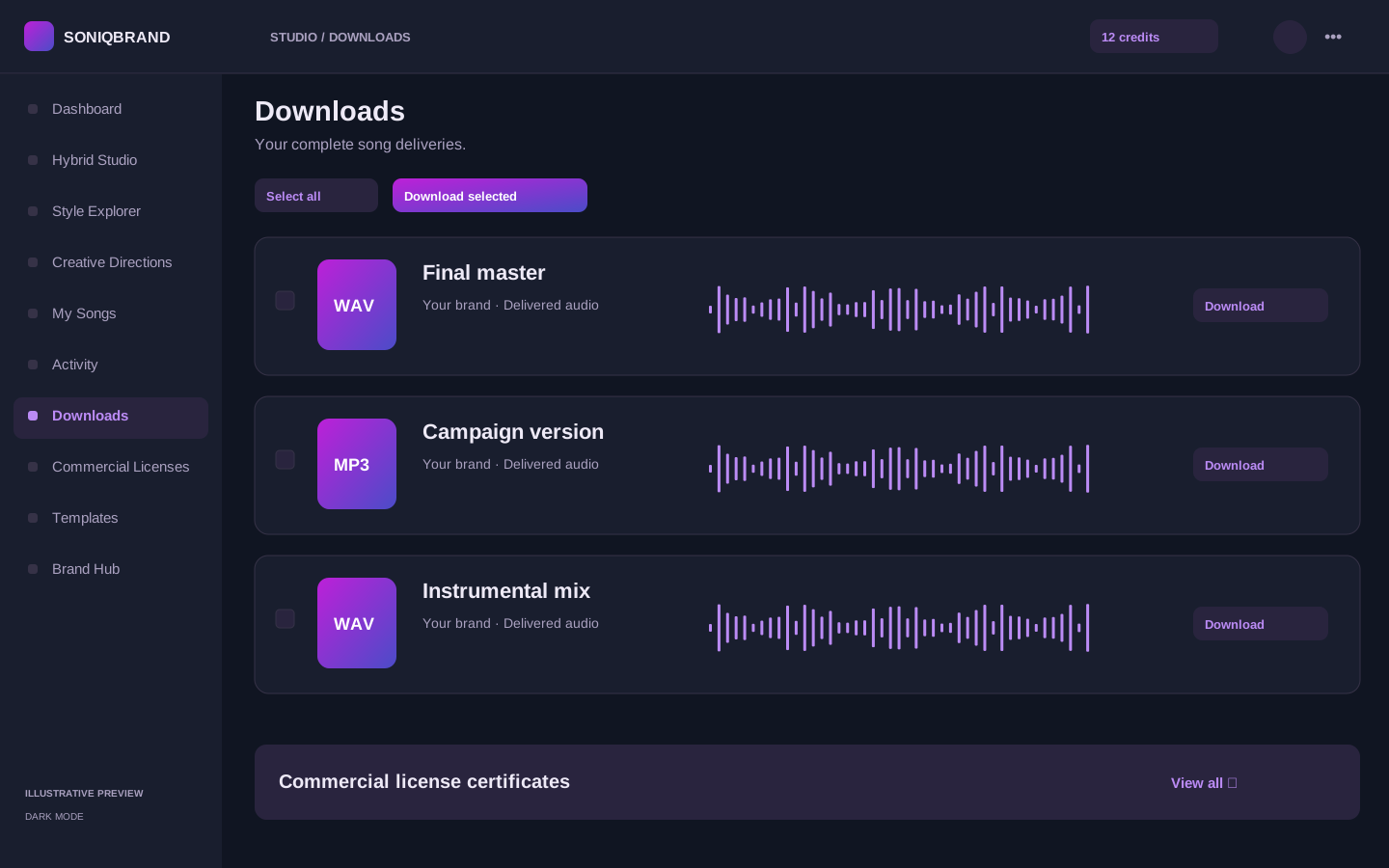
Review the delivered files
Open your project or Downloads to preview the available versions. Delivery types can include MP3, WAV, instrumental, vocal, stems and alternate mixes, depending on what has been produced and uploaded.
Download one file or a set
Use Download for an individual asset. For a package, select the required files and choose Download selected ZIP or Download ZIP in the delivery view.
Organize supporting material
Use Media Center to upload assets and organize them into folders or albums. Search, preview, favorites and bulk actions help keep your working library manageable.
Keep the certificate with the final master
Visit Commercial Licenses to collect the issued certificate alongside your music files. Review the permitted use before putting the track into a campaign.
Check the actual files and your purchased package. A listed delivery type does not mean every project automatically includes that format.
1010 / PREPARE TO PUBLISHKeep the rights with the music.
3 min
The license center keeps issued certificates connected to your SoniqBrand projects.
Open Commercial Licenses
Issued certificates appear in the rights center. If the list is empty, the studio has not yet issued a license for your delivered songs.
Review the certificate
Check the song, licensed brand, license holder, license type, territory, status, issue date and any expiration date. Read the permitted usage, restrictions and additional terms.
Save the PDF and verification details
Use View certificate or PDF to keep a copy with the delivered audio. The Verify action opens public verification using the certificate’s verification code.
Ask about a different use
If the intended brand, territory or use differs from the certificate, contact the studio before publishing. Your issued certificate and agreed terms determine the permitted use.
Keep a license copy in the same campaign folder as the final audio so the team responsible for publishing can find both.
A better brief starts here.
Use this quick check before sending your project to the studio.
This checklist is for your review only. It does not submit or change a project.
Make your next idea sound like you.
Start with a clear brief. Let the studio take it from there.
Sign in to create a project. New here? Create your account from the sign-in page.